
Install Maplestream TV on Android

DOWNLOAD THE IMPLAYER APP HERE
CLICK THE "GET IT ON GOOGLE PLAY" BUTTON
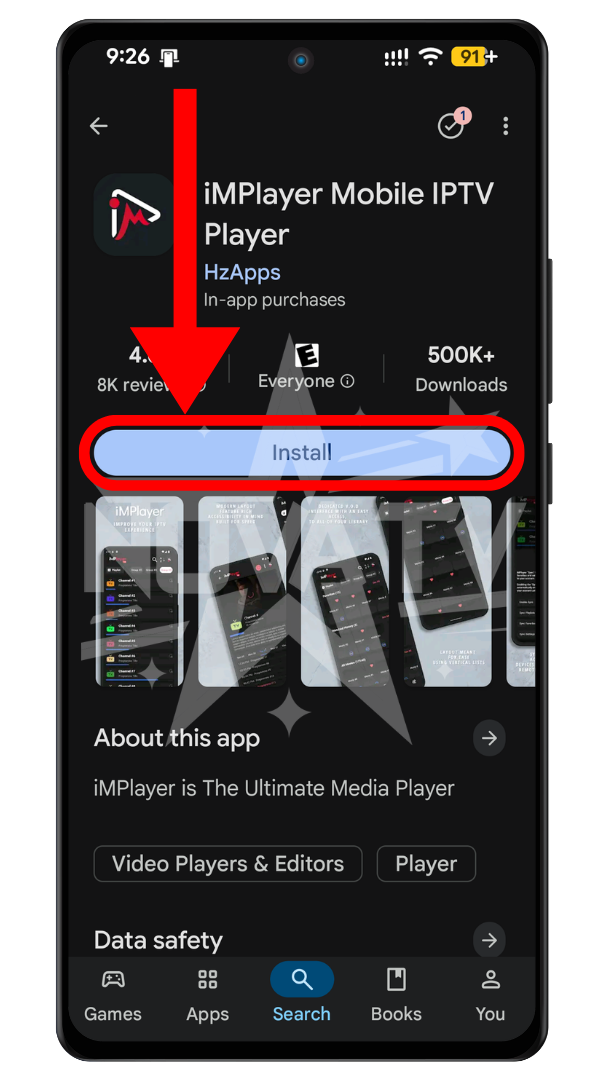
After tapping the button above, install and open the app.
Search for "ImPlayer" in Google Play, install it, and open it.
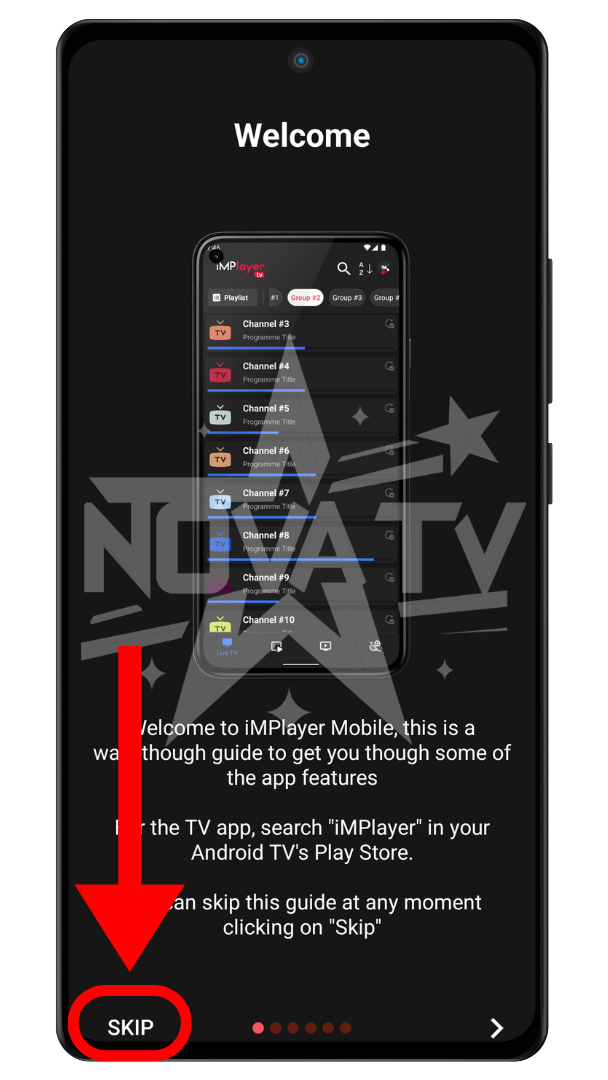
Once the download is complete and the app is open, tap SKIP.
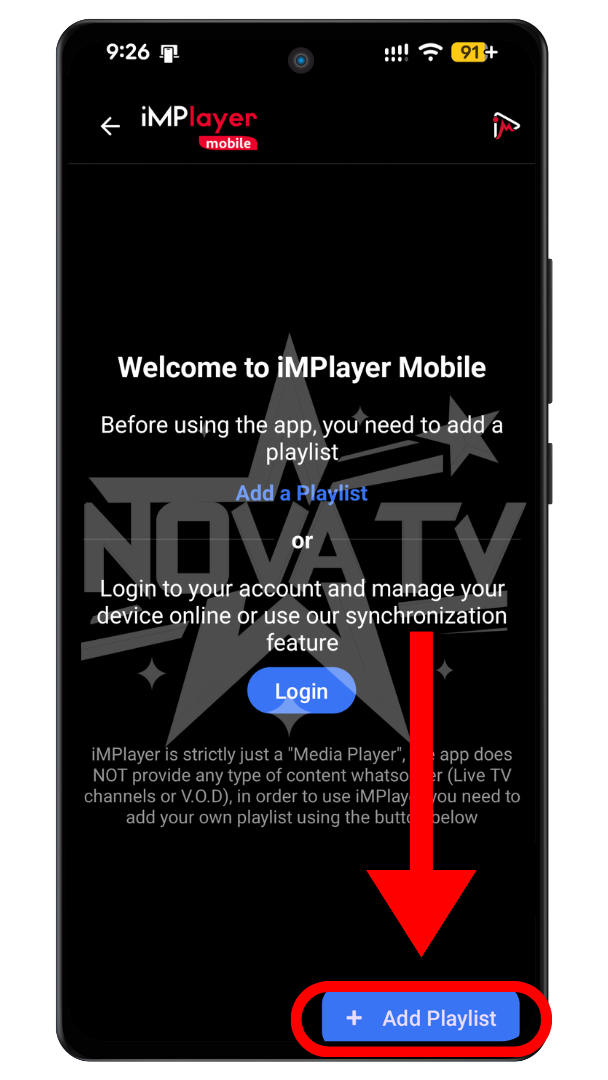
As soon as the "+ Add Playlist" or "Ajouter une Playlist" button appears, tap it.
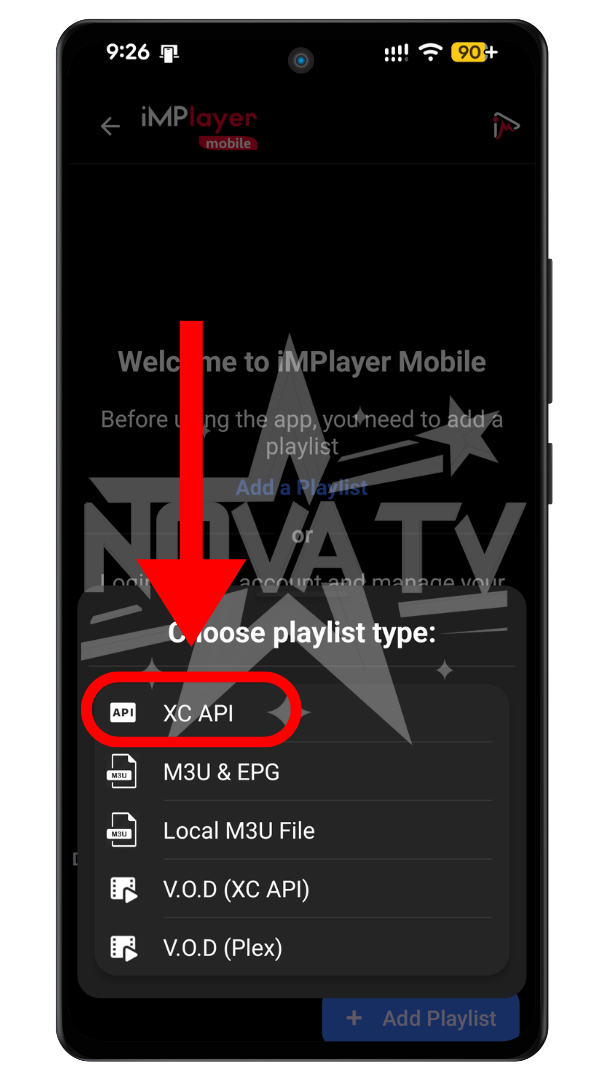
Select "XC API".
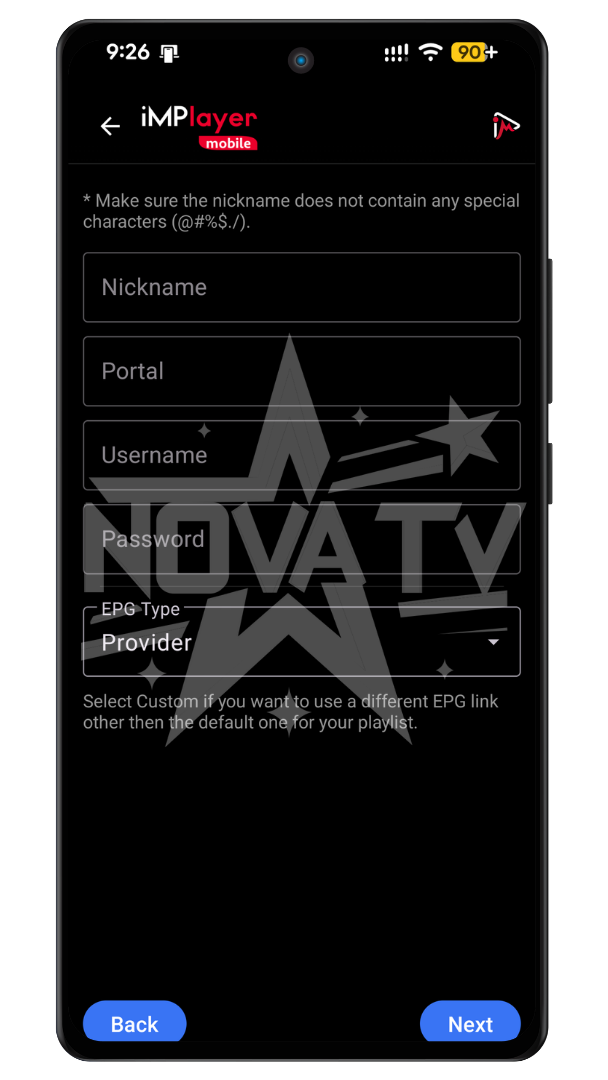
Enter your MaplestreamTV account information, which you received via email at
or
. IF YOU ARE LOGGED IN TO THE WEBSITE, the information is listed below:
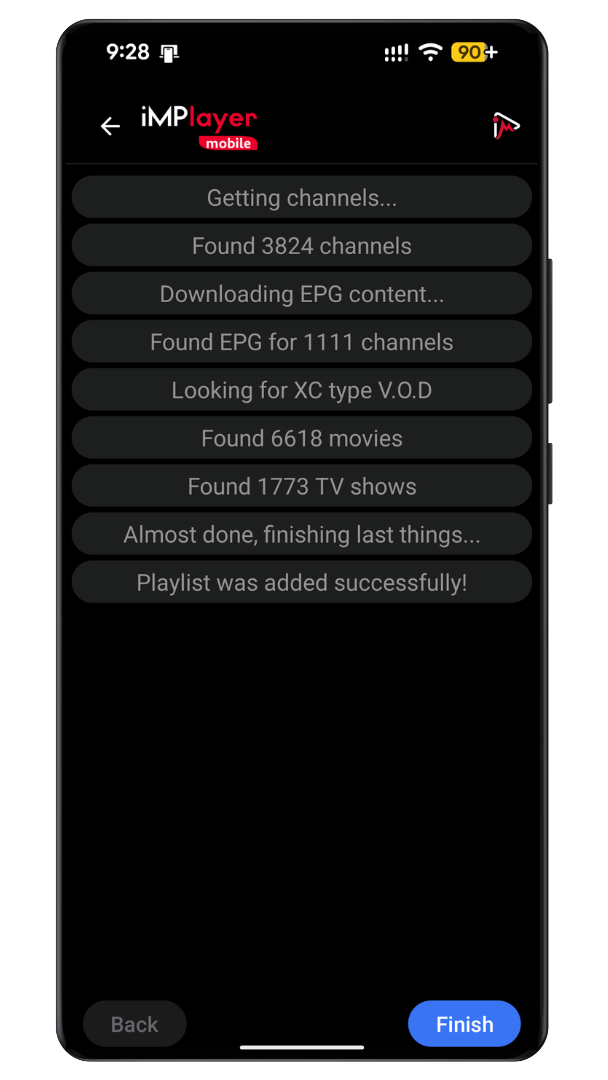
You'll see this screen appear. You can then click "Finish" and start using the service!
Install Maplestream TV on IOS (IPhone, IPad and AppleTV)
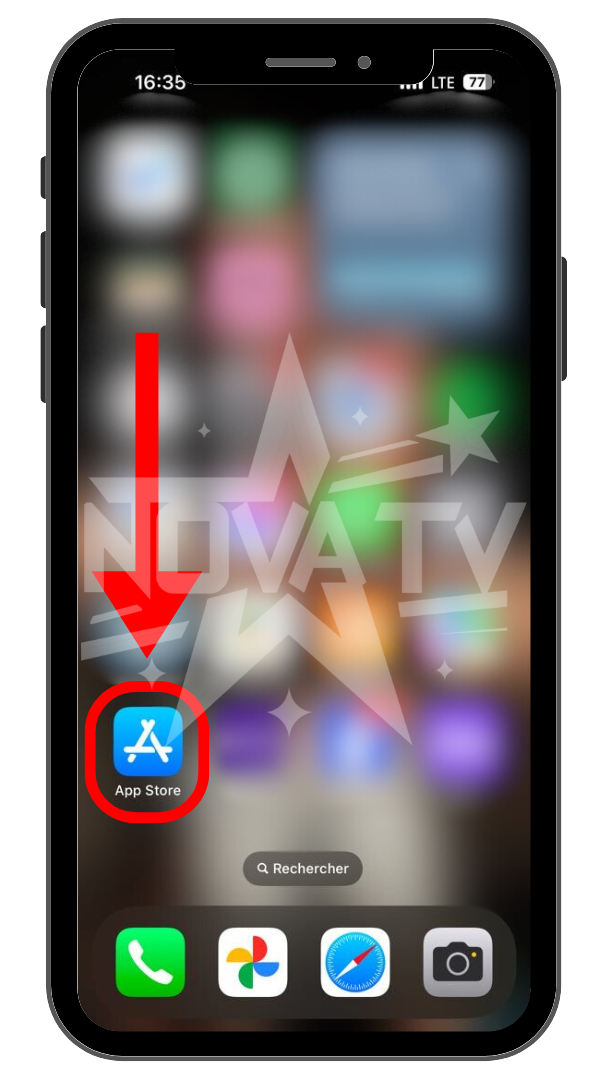
Open the App Store.
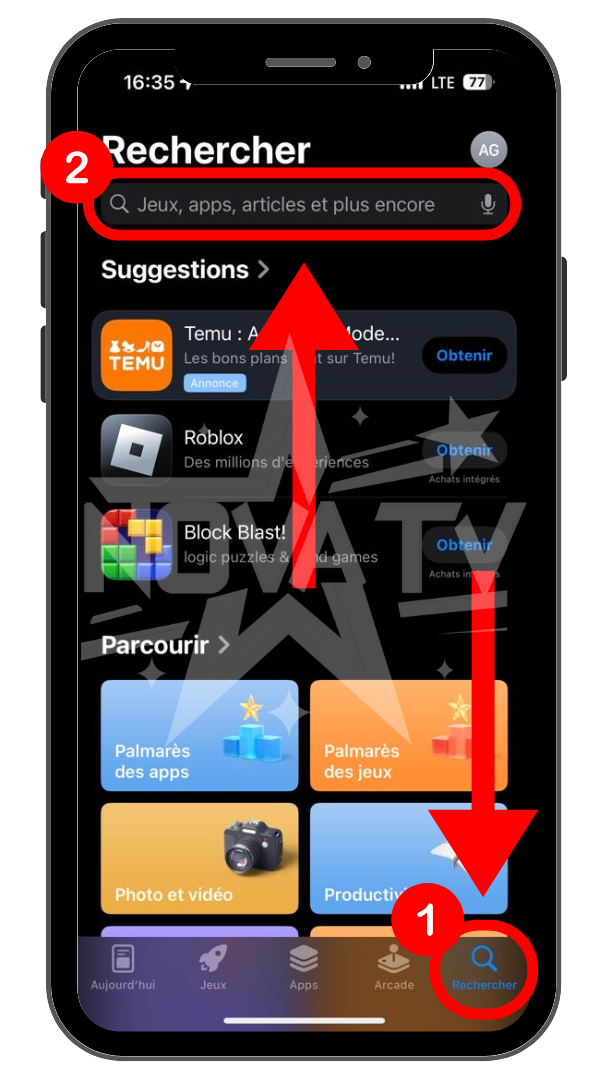
In the App Store, click on the search icon and then on the search bar.
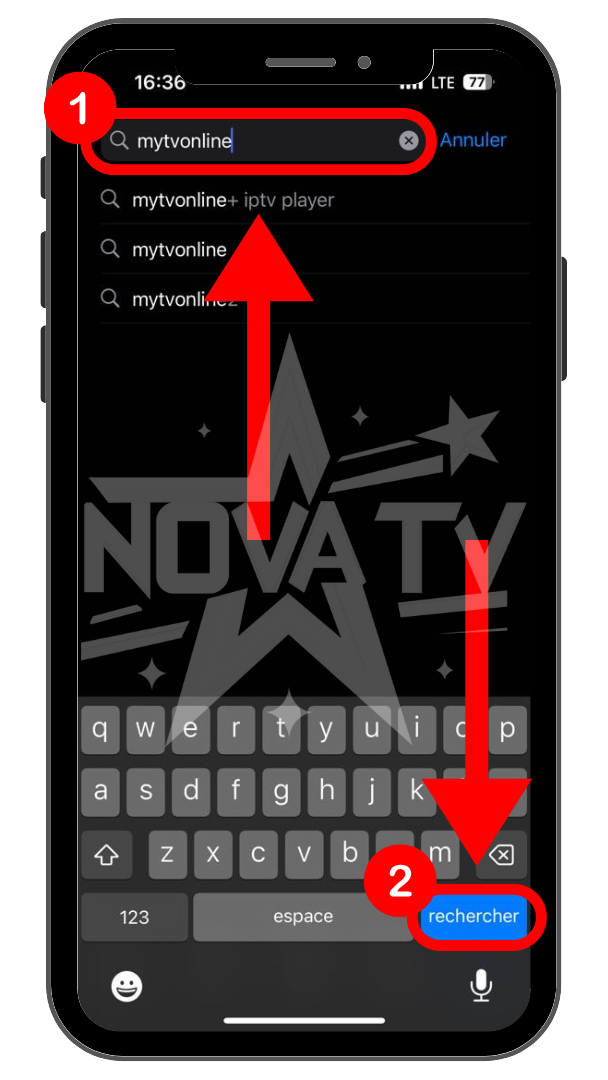
Type "MyTvOnline" and press "search".
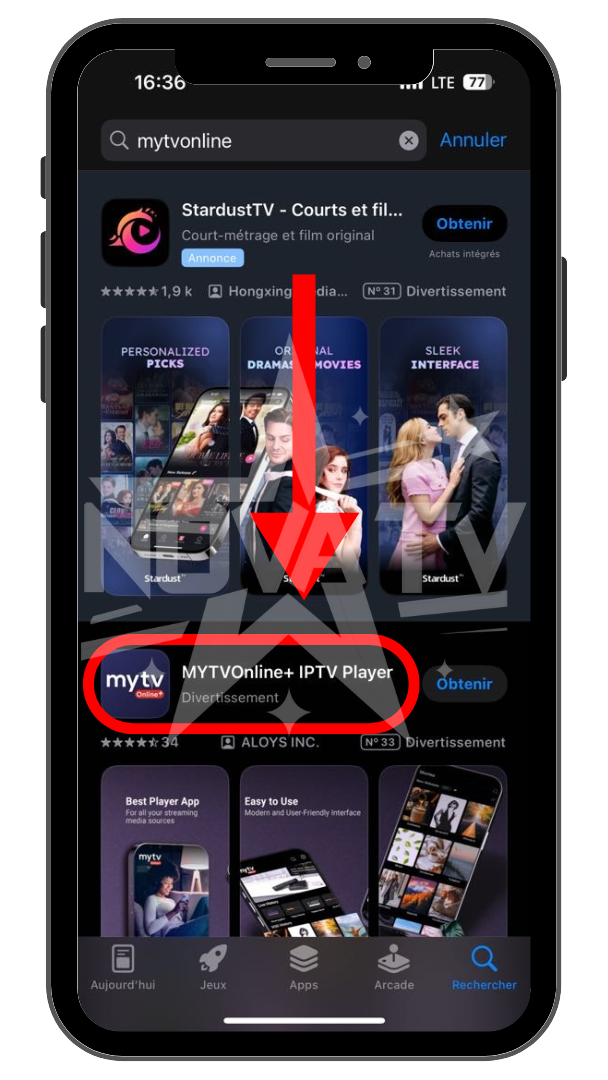
Press the application as shown on the screen.
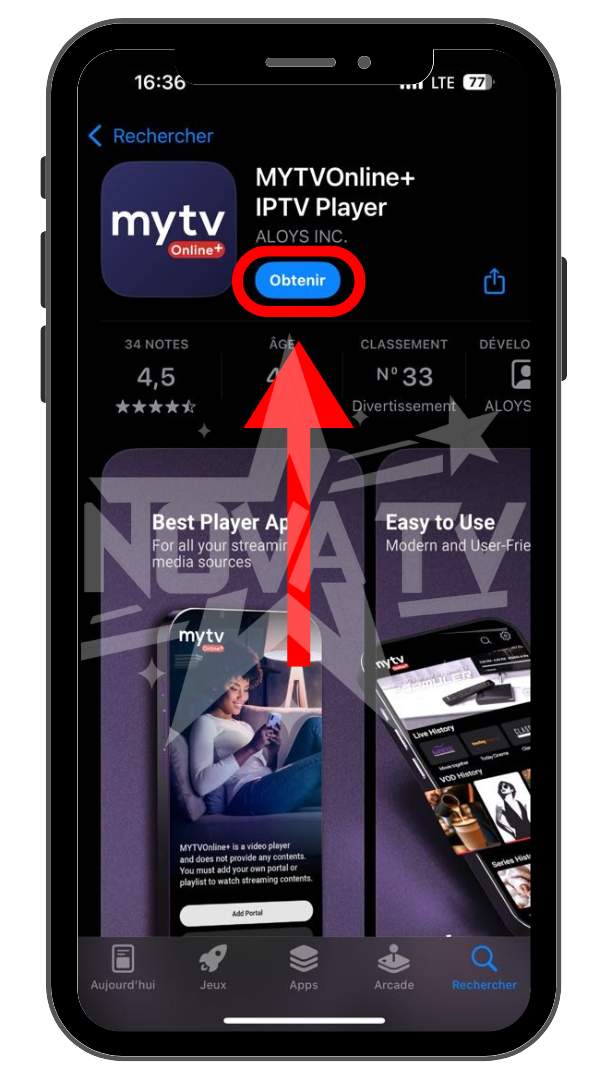
Press "Get" and wait for installation.
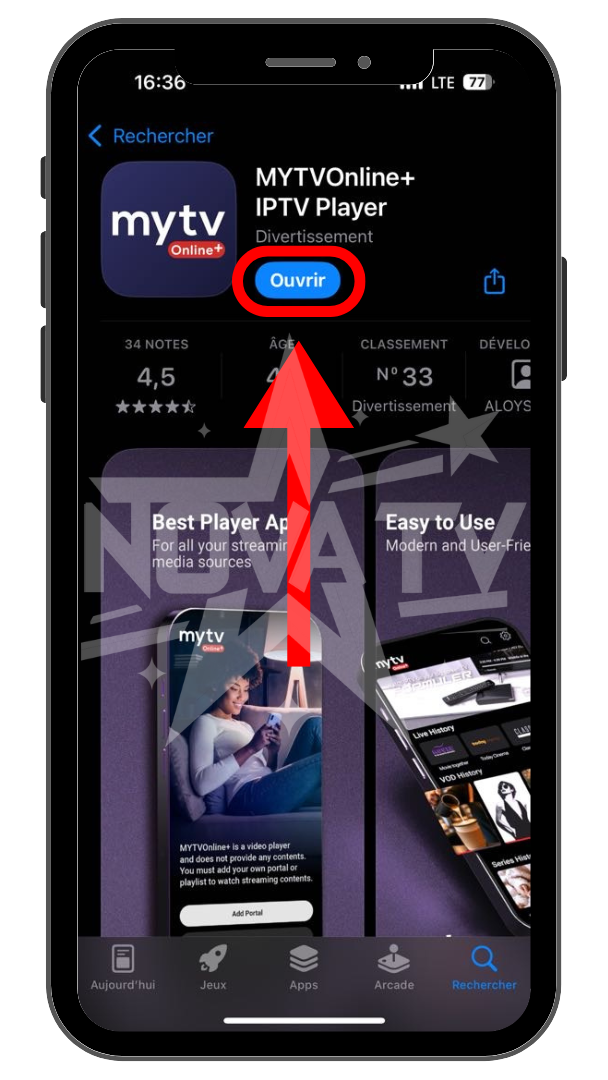
Once installation is complete, click on "Open".
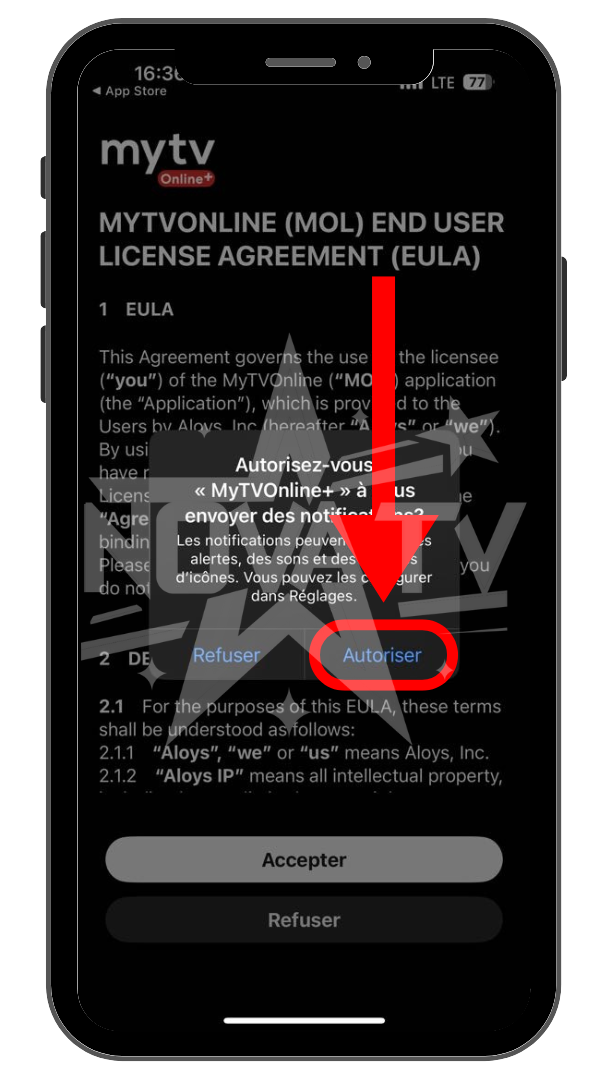
Once in the application, enable notifications.
Accept the terms of use.
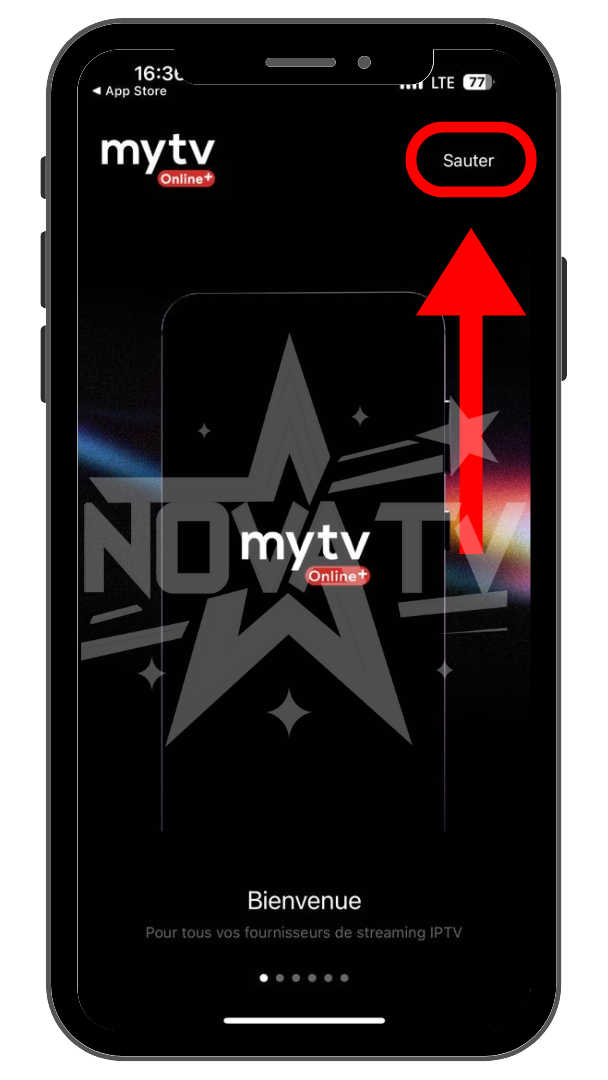
Press "Skip" to skip the tutorial.
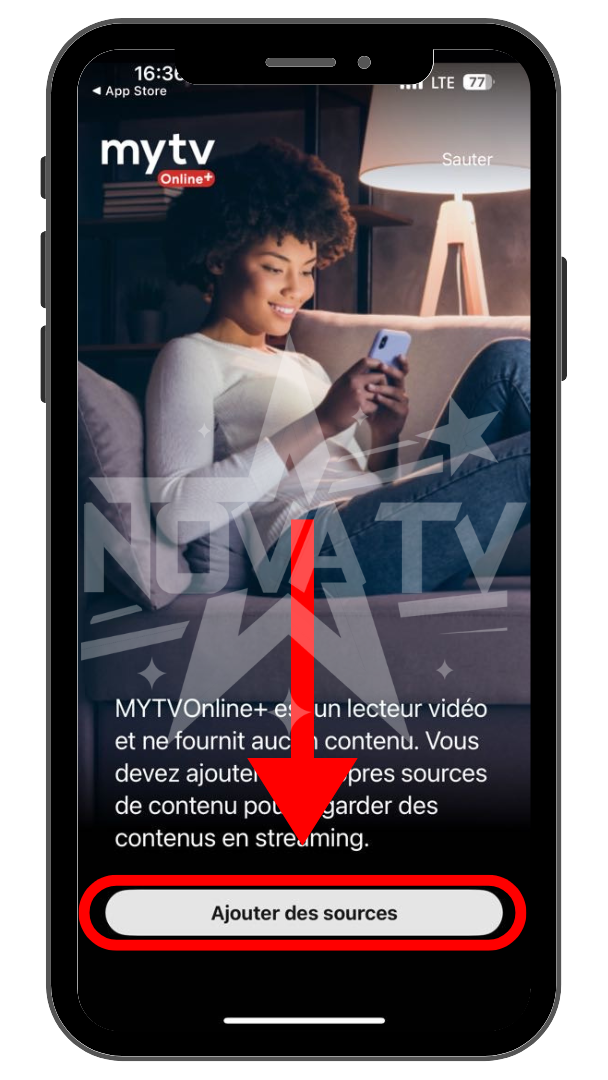
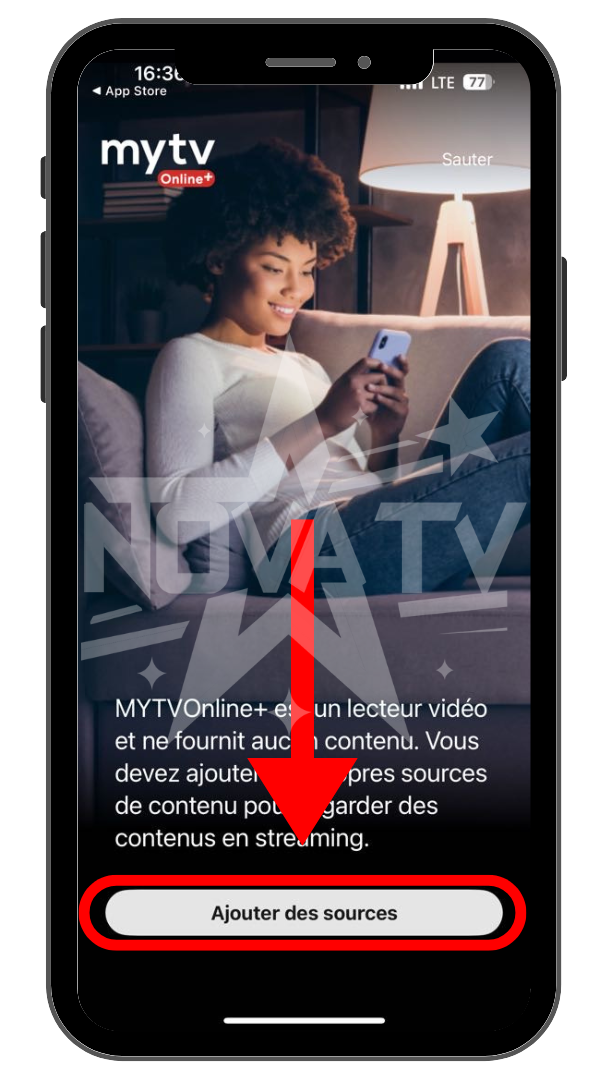
Press "Add sources".
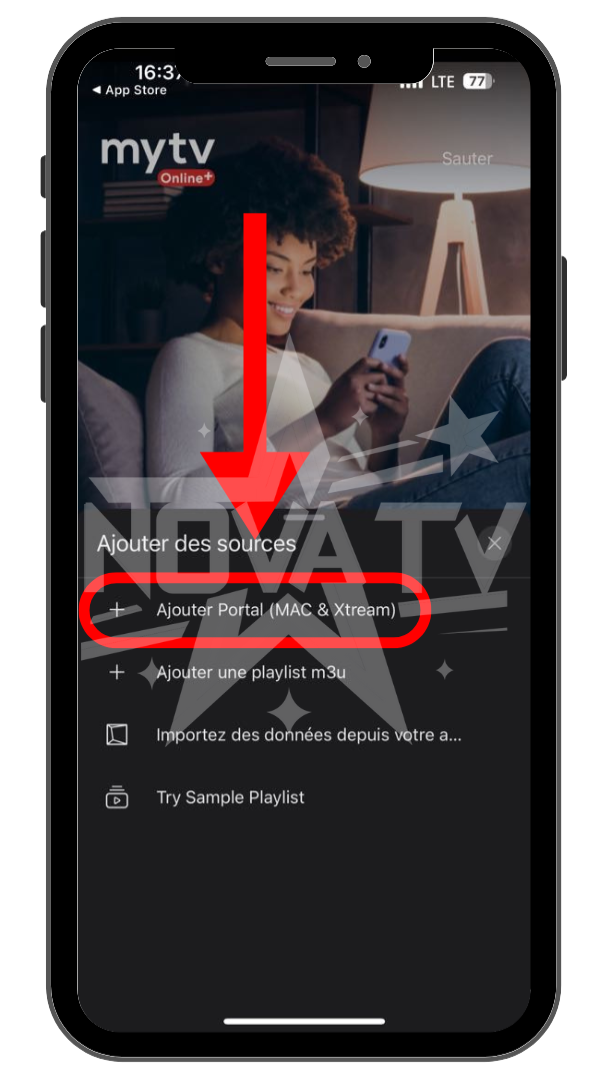
Press the "Add Portal (MAX & Xtream)" option.
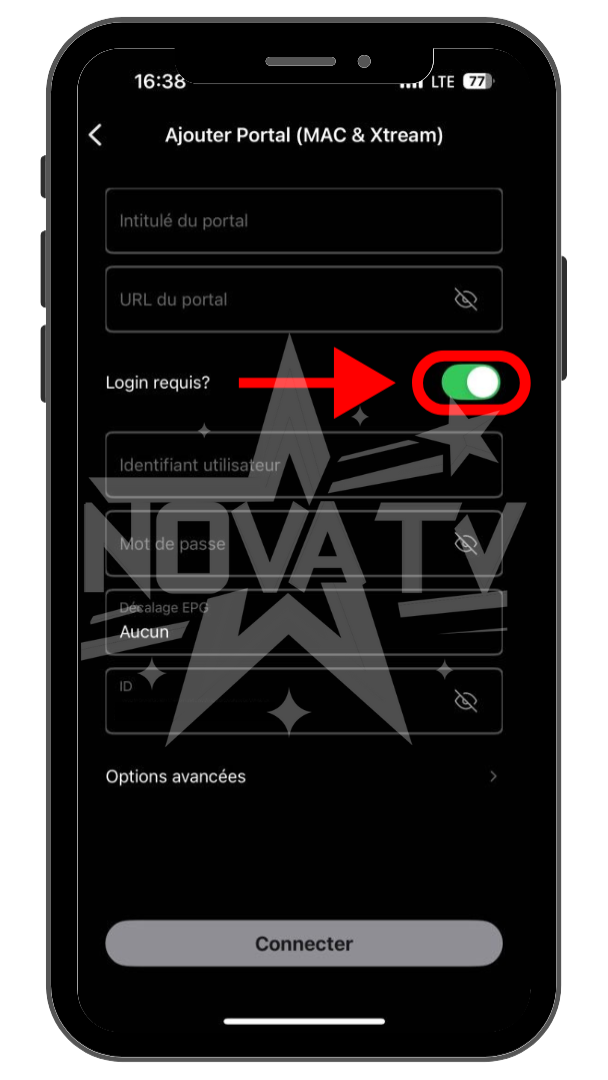
Check the "Login required?" box
Enter your Maplestream TV login credentials.
Portal title: Any name you like (example: Maplestream TV)
Portal URL: The URL sent to you via email. (Server)
Username: Your username
Password: Your password
Click "Connect" once you've entered the information.
NOTE: If you have lost the email, you can find your information in "My Account" on the Maplestream TV website.
.
IF YOU ARE LOGGED IN TO THE WEBSITE, the information is below:
Install Maplestream TV on Amazon FireStick, FireTV and FireCube
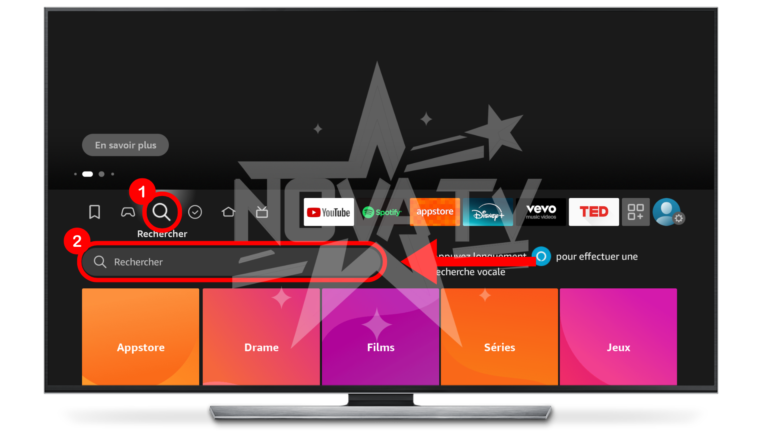
Click on the "Magnifying glass" option and then the "Search" bar on the FireStick home screen.

Type the name of the application (Downloader).
When the Downloader option appears in the search results, click on it.

Select the "Downloader" application with the orange background.

Download the application.

Return to the home screen using the controller's "Home" button.
Press your "Settings" user icon.
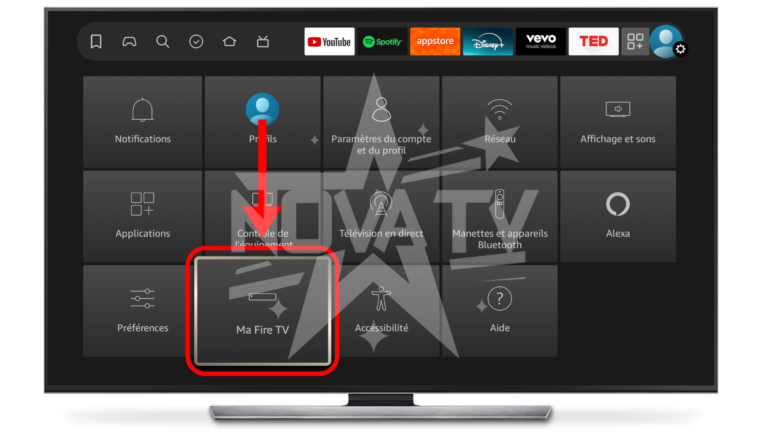
Press "My Fire TV".

Press "Options for developers".
PS: If the option is not present, press 7X on "About" to bring it up.

Press "Install unknown applications".
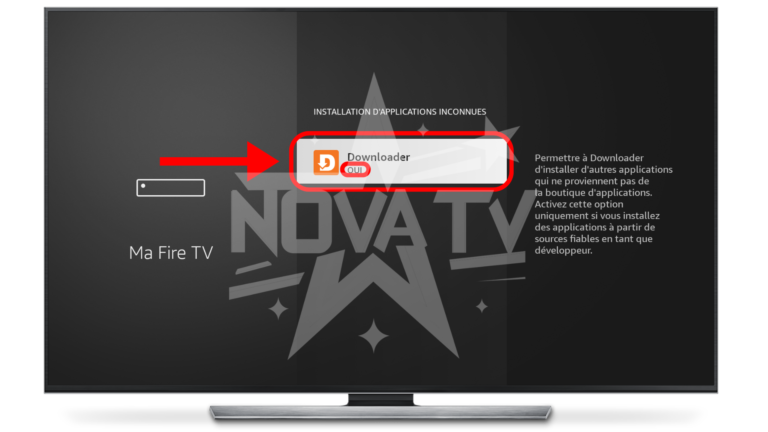
Press Downloader.
Make sure it says "YES".

Use the button on the joystick to return to the home page and scroll down until you see "Downloader" under "Recently used applications".

Press "Downloader".
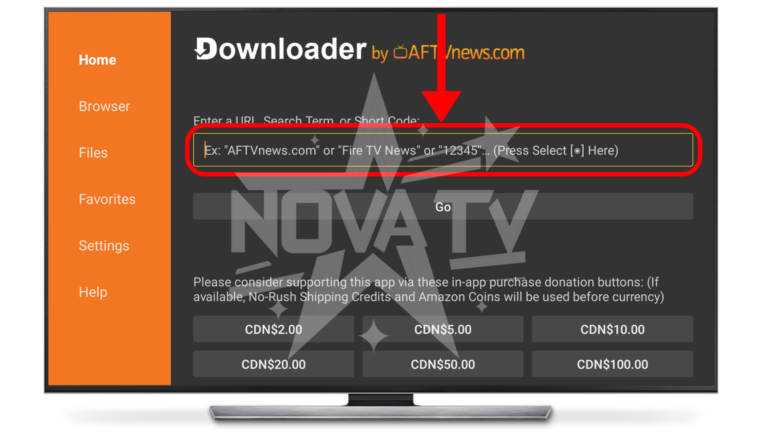
Once in "Downloader", accept the conditions and press the search bar.
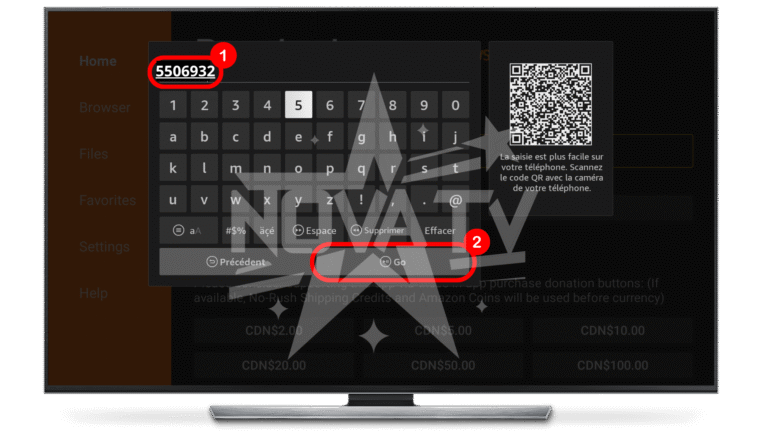
Enter "5506932" and tap "Go."
If you are asked to accept the terms and conditions, select "Yes."
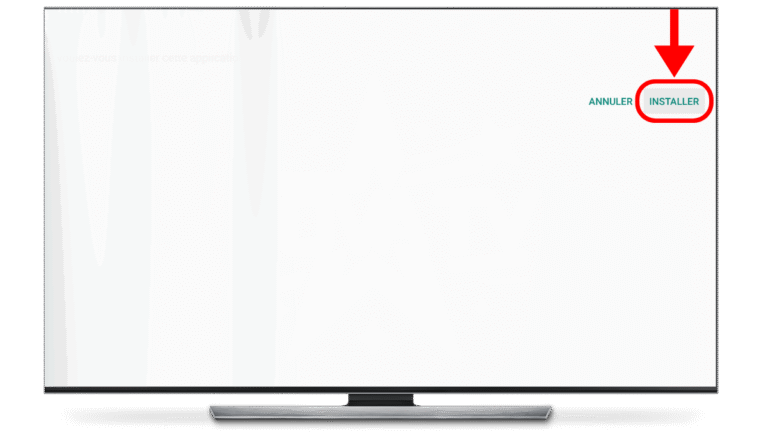
The Maplestream TV application installation will appear.
Press "INSTALL".
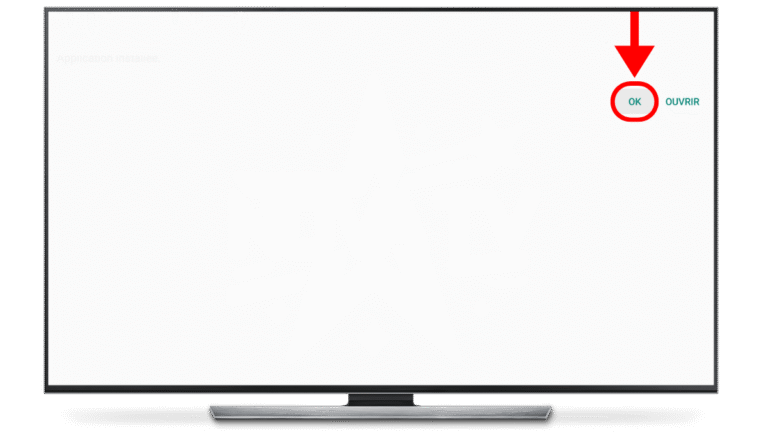
Press "OK" when installation is complete.
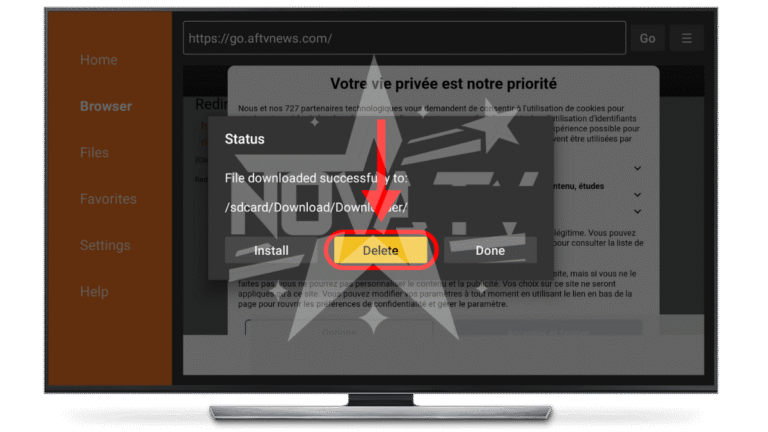
Press "Delete" to return to "Downloader".
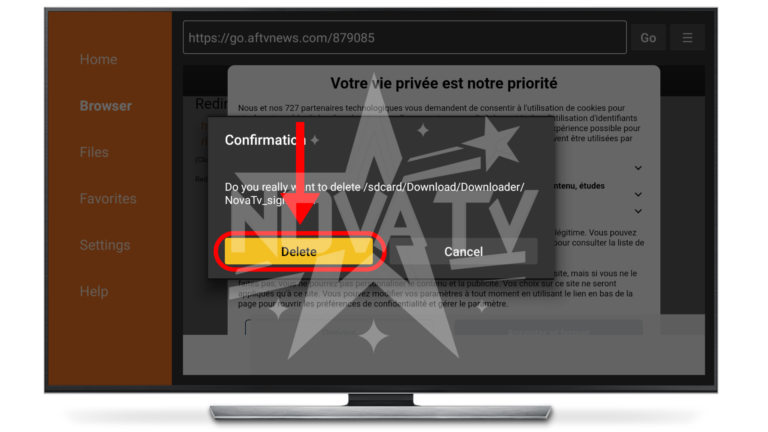
"Delete" to confirm deletion.
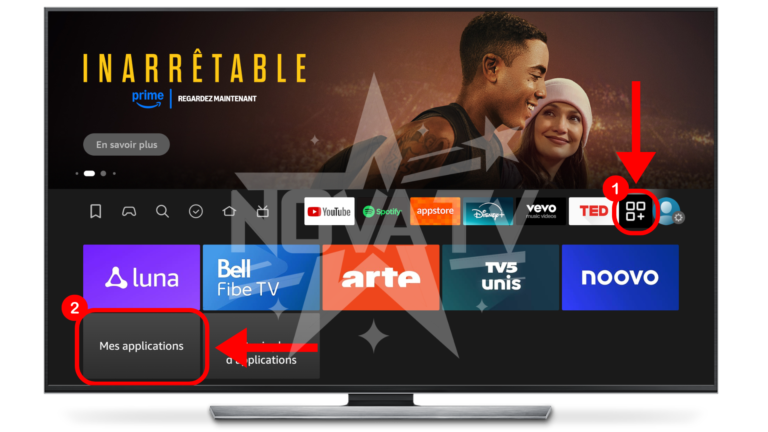
Press the "Applications" icon on the right and then "My applications".
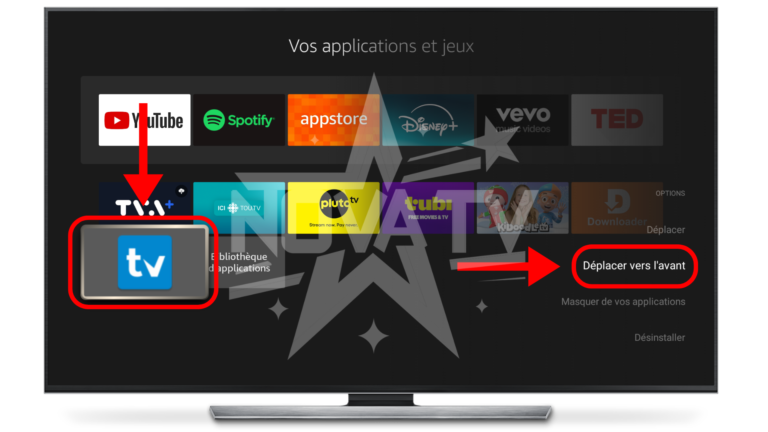
Press the blue "TV" icon and choose the "Move forward" option.
This will bring Maplestream TV to the home screen at all times.
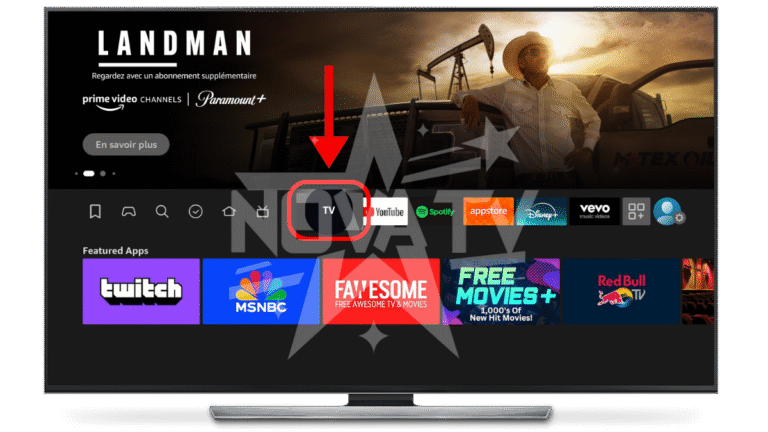
Open Maplestream TV.
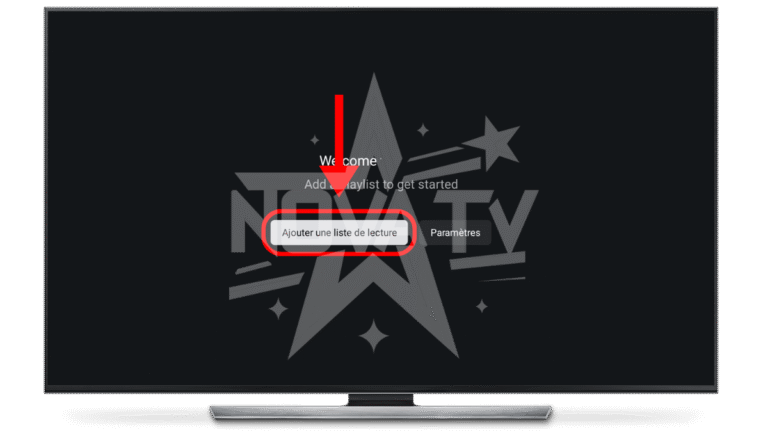
In Maplestream TV, press "Add a playlist".
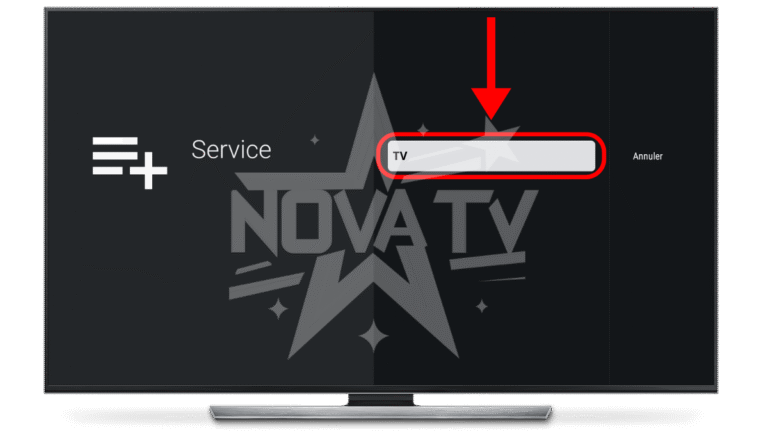
Press the "NOVATV" service.
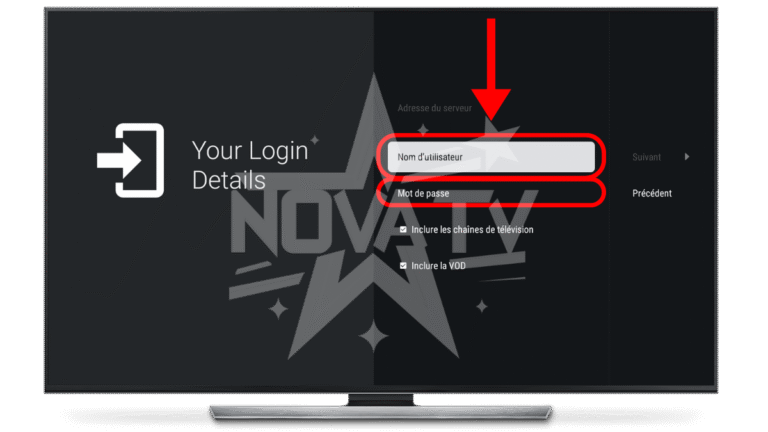
Enter the username and password you received via email and click "Next."
NOTE: If you have lost the email, you can find your login information in "My Account" on the Maplestream TV website.
.
IF YOU ARE LOGGED IN TO THE WEBSITE, the information is below:
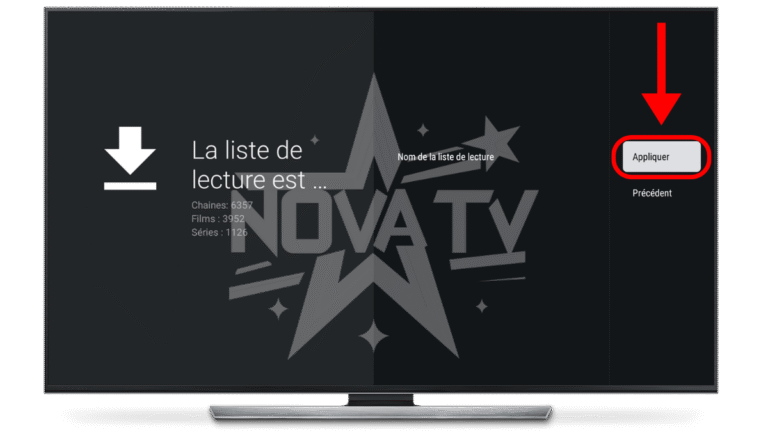
Press "Apply".
You'll be redirected to the application, where you can take full advantage of your Maplestream TV subscription!
Install Maplestream TV on Samsung and LG smart TVs
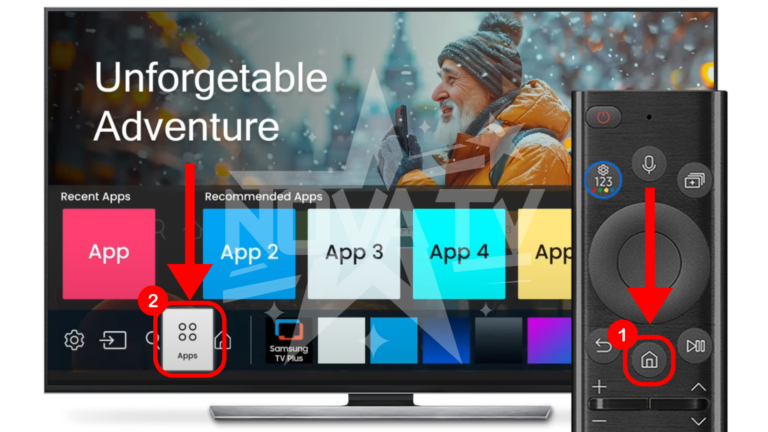
Press the "Home" button on your TV controller and tap the "Apps" icon.
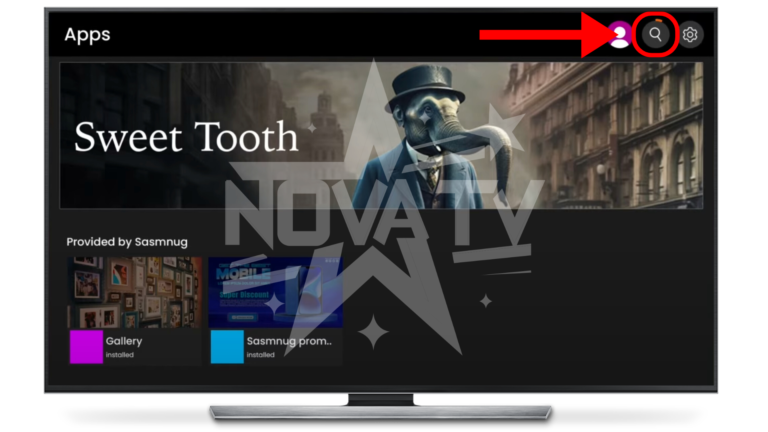
Press the "magnifying glass" search icon.
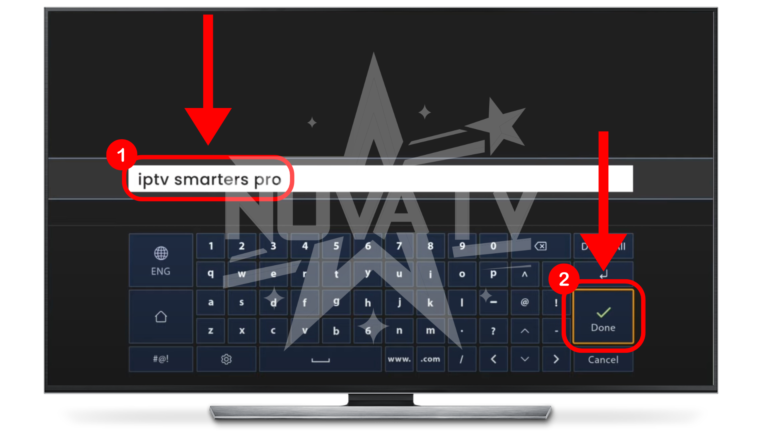
Search for "iptv smarters pro" and press "Done" or "Enter".
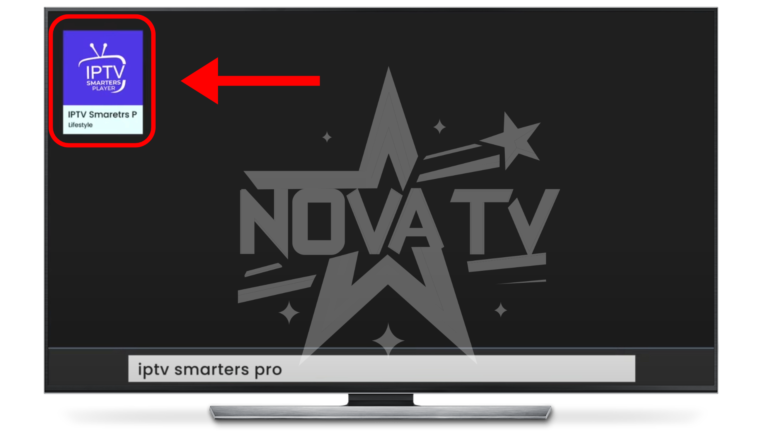
Click on the IPTV Smarter application.
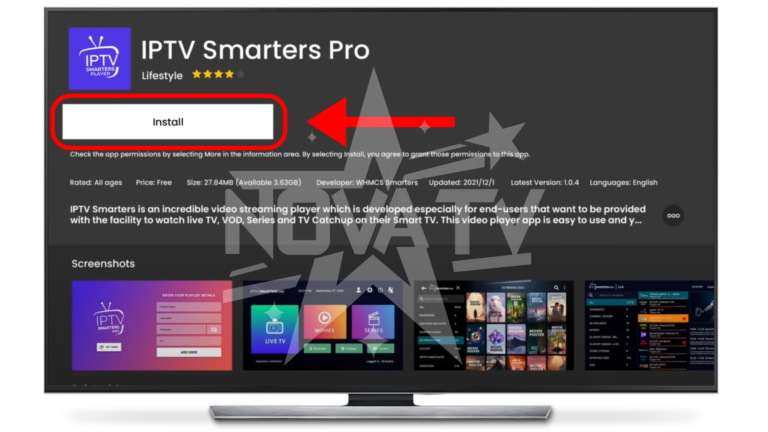
Press "Install" or "Installer".
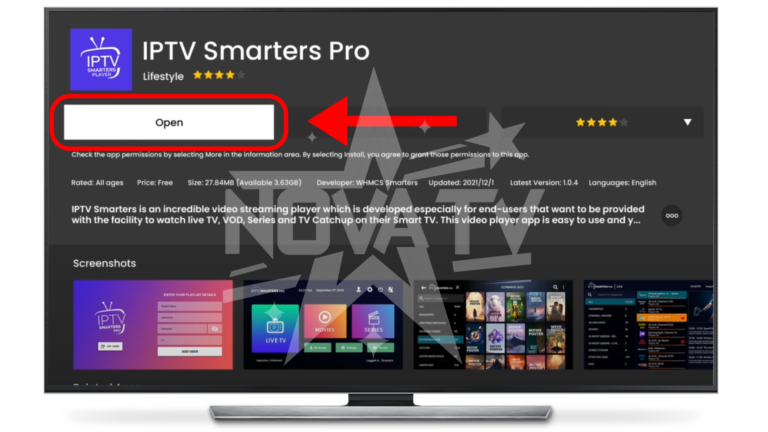
Press "Open".
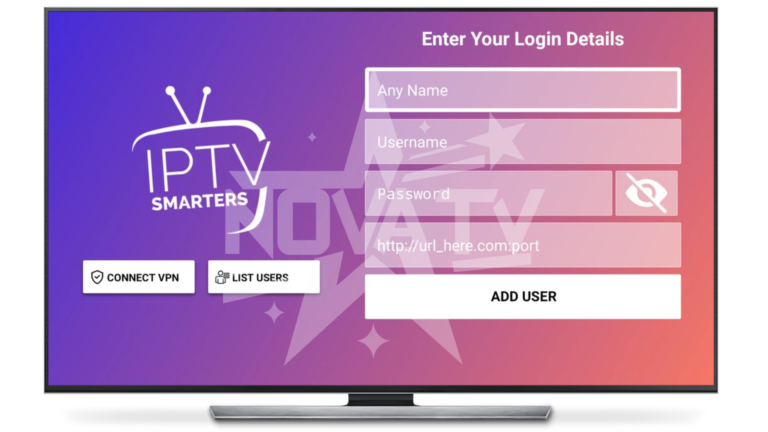
Enter your Maplestream TV login information.
Any name: Maplestream TV
Username: your username
Password: your password
URL: The URL for your service
NOTE: If you have lost the email, you can find your information in "My Account" on the Maplestream TV website.
.
IF YOU ARE LOGGED IN TO THE WEBSITE, the information is below:
Install Maplestream TV on Roku
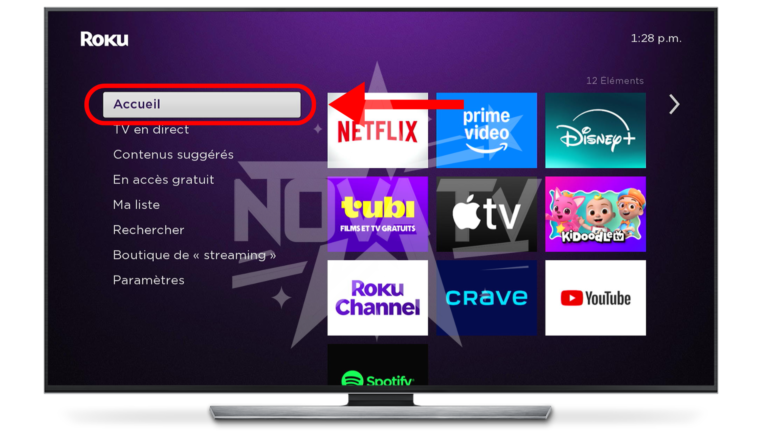
Press the "Home" button on your controller.
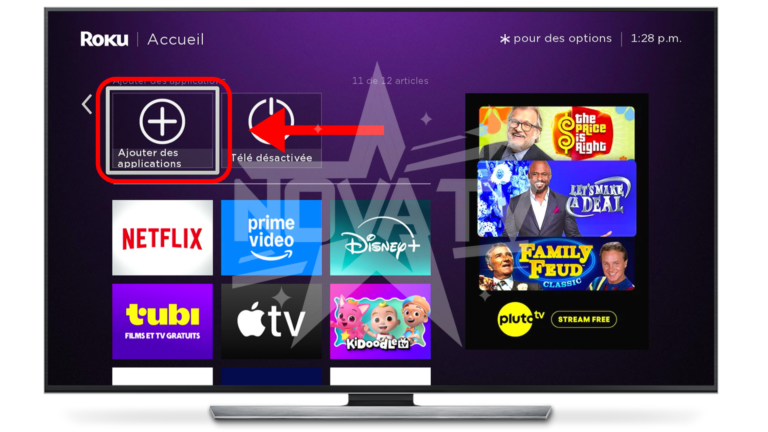
Find and press the "Add applications" icon.
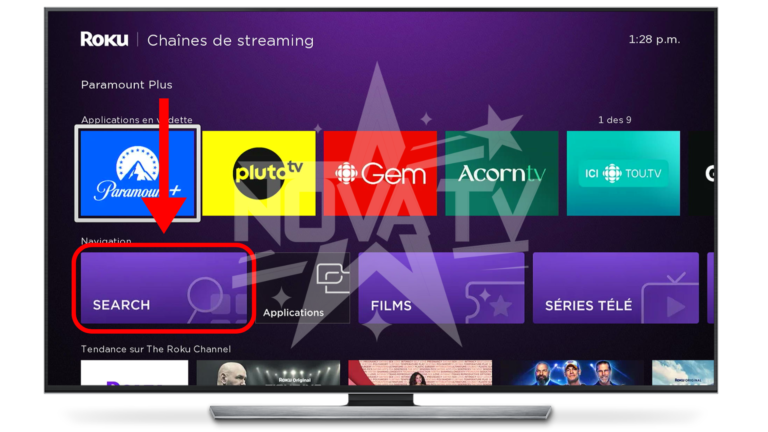
Press "Search".
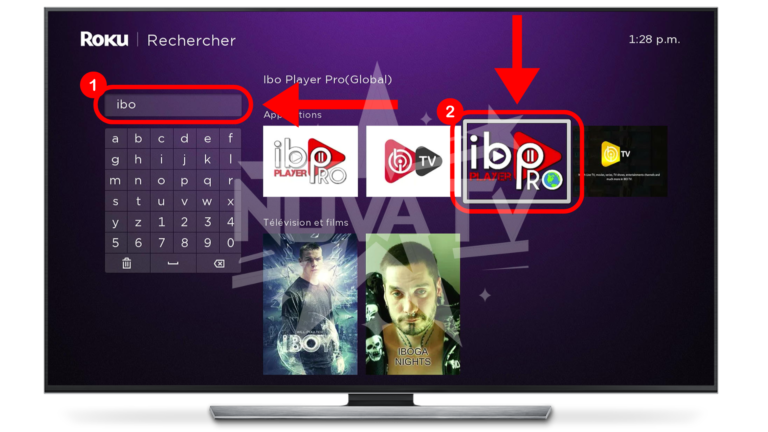
Search for "ibo" and then click on the "Ibo Player Pro (Global)" application.
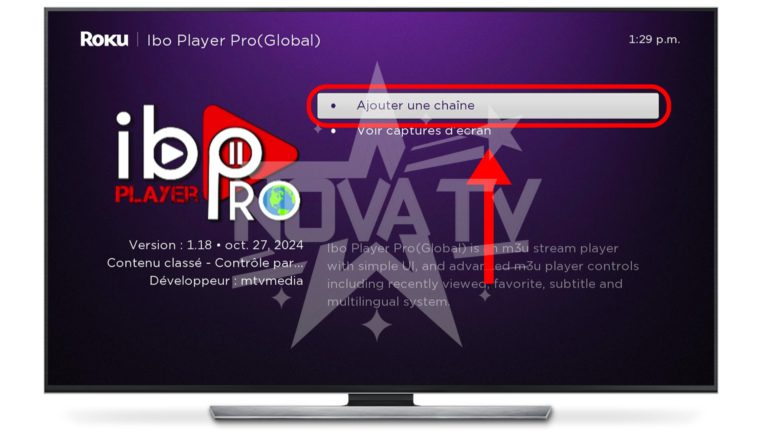
Press "Add a channel".
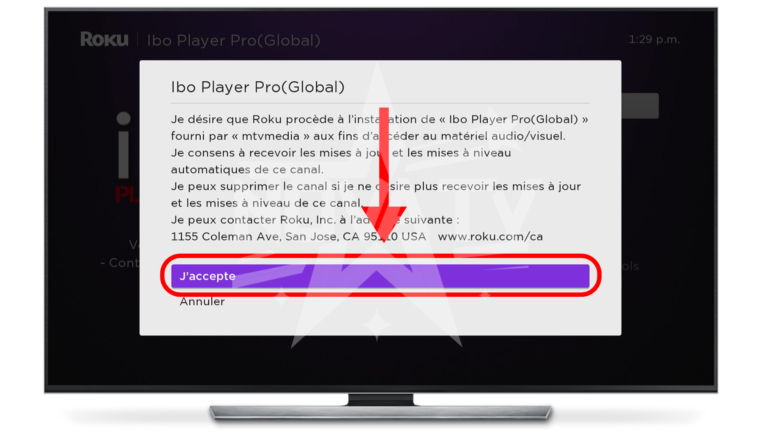
Press "I accept" to install the application.
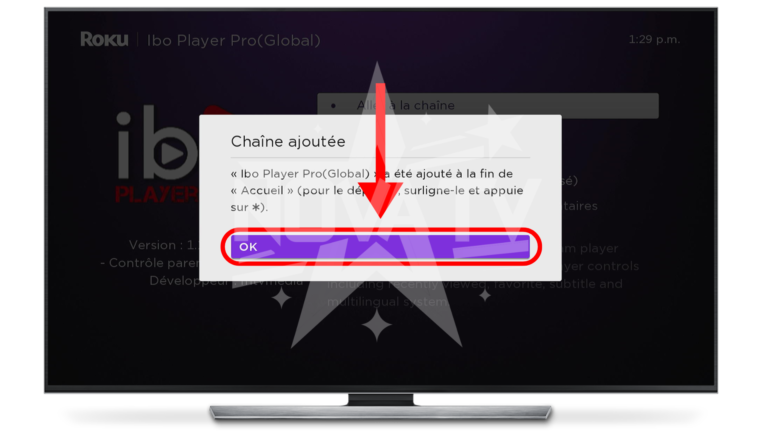
Press "OK" when finished.
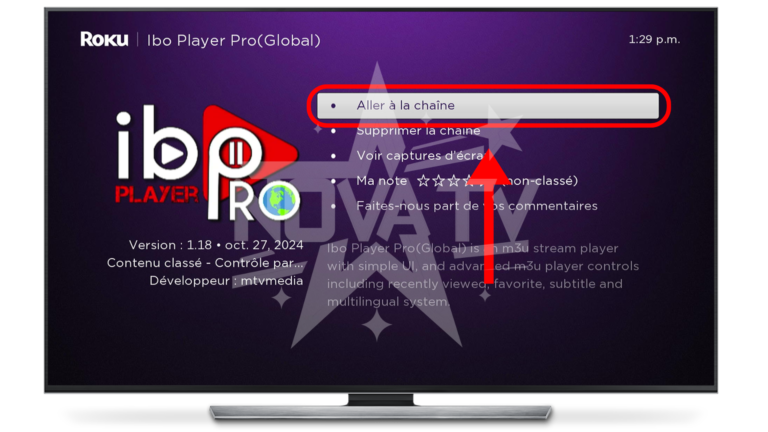
Press "Go to channel" to open the application. It will also be on your Roku home.
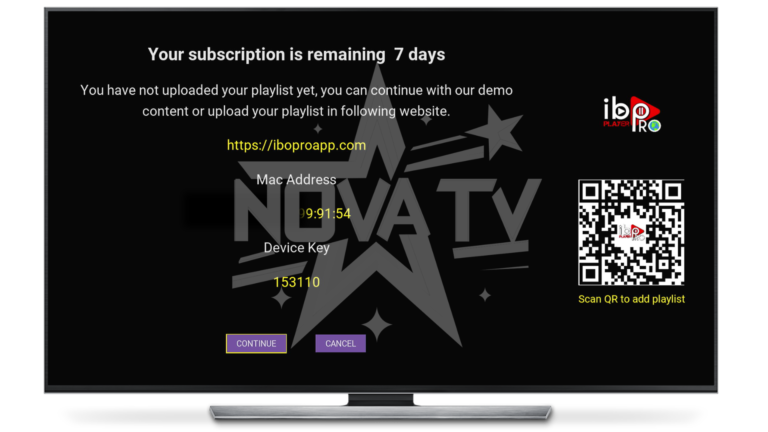
Once you're on the app, send us a photo of this screen here via the website chat.
Box Formuler user guides
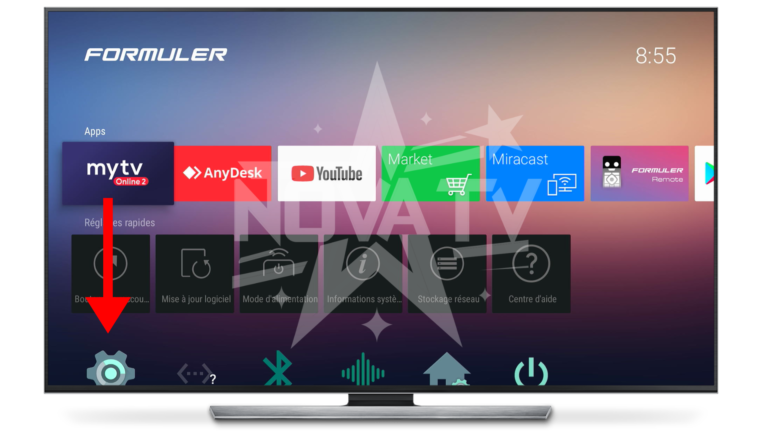
CONFIGURE WIFI :
Press the "Home" button on your controller.
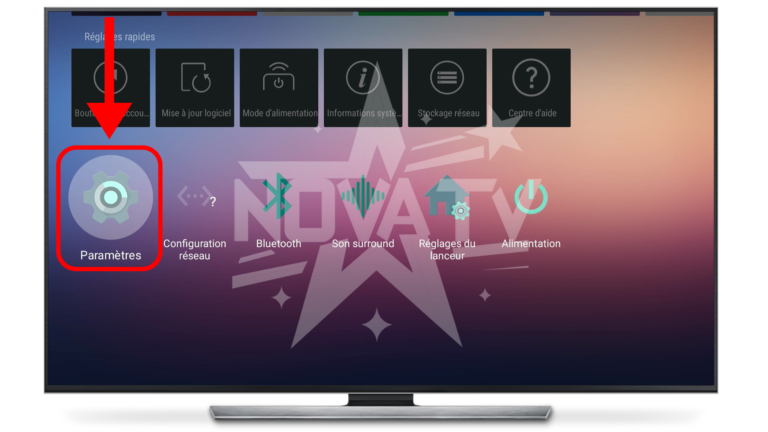
Find and press the "Settings" icon.
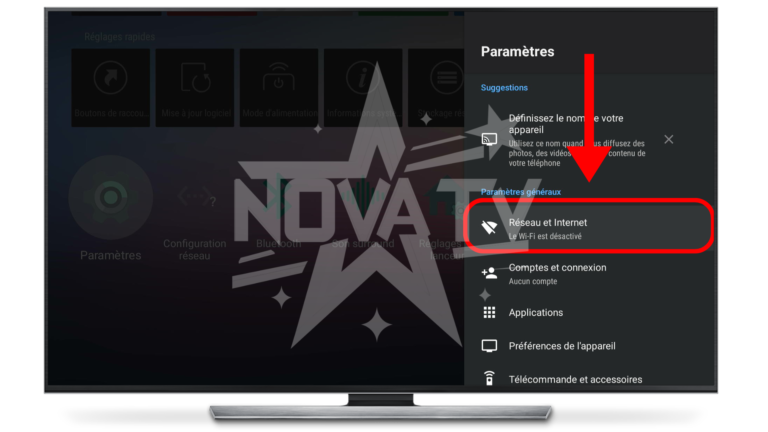
Press "Network and Internet".
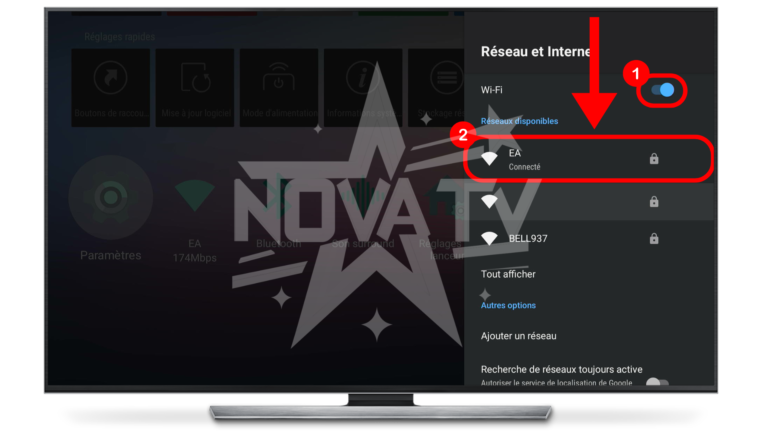
Press on your Wi-Fi.
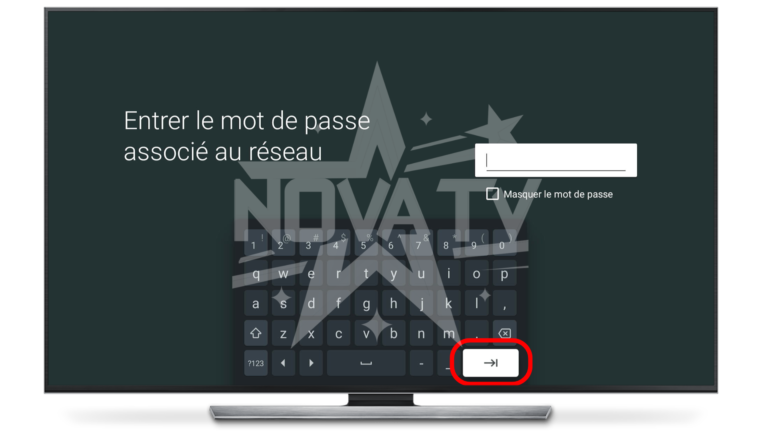
Enter the password and press "Enter".
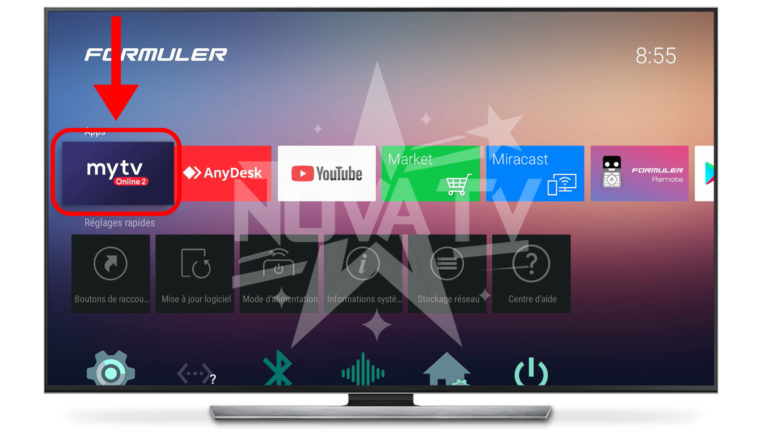
CONFIGURE ANOTHER TV SERVICE :
Press the "Home" button on the joystick and open "MyTvOnline".
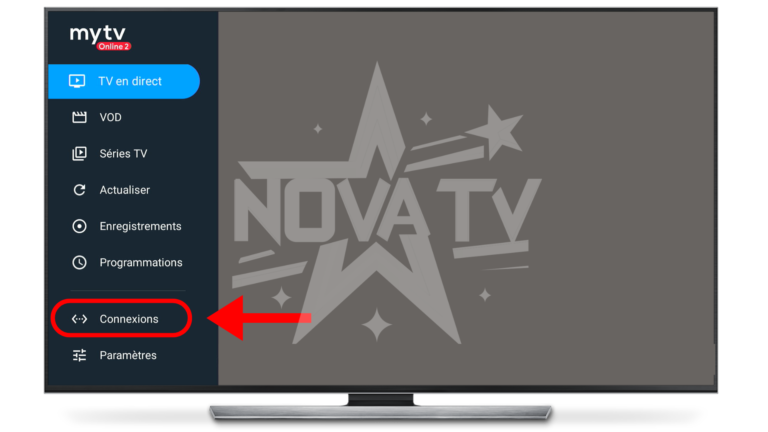
Press the "Menu" button on your controller and select "Connections" from the menu.
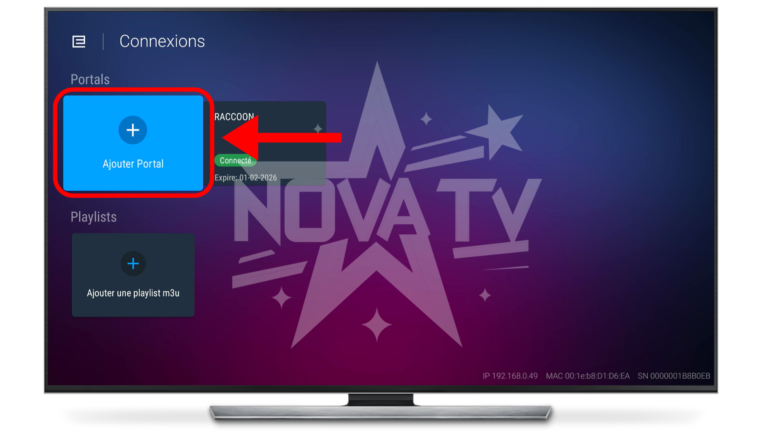
Press "Add Portal".
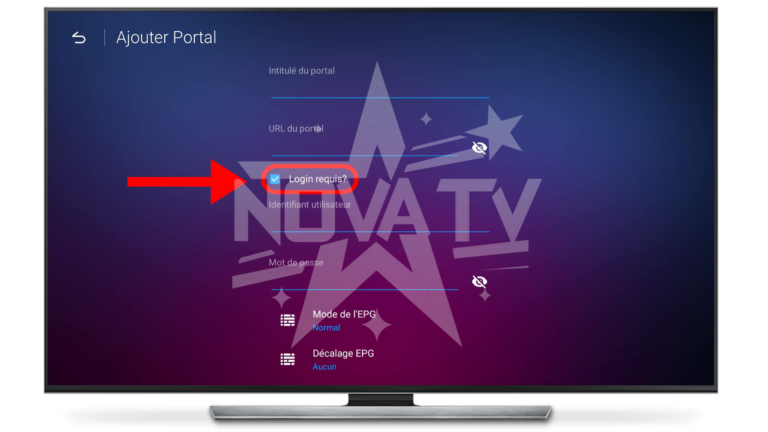
Check the "Login required?" box and enter the details of the service to be added.
"Portal title" is the display name. Enter whatever you like, for example: Maplestream TV 2
Enter the rest of the information as received by e-mail.
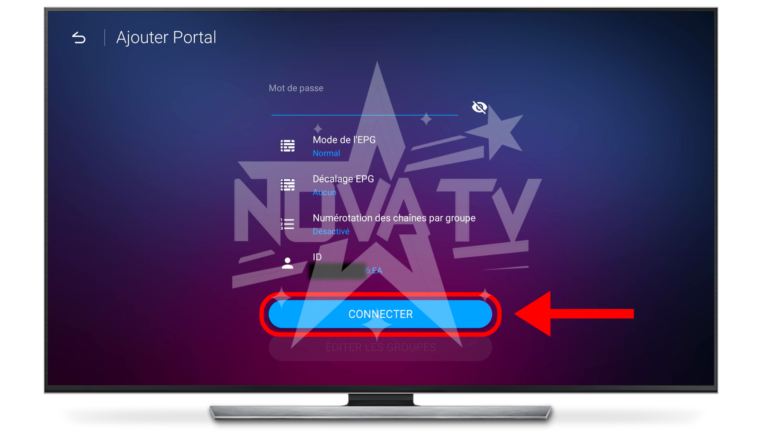
Once all the information has been entered, press "CONNECT".
CHANGE THE TV SERVICE FOR ANOTHER:
If you have several portals configured in MyTvOnline, you can switch between them.
Start by going to the "Connections" menu.
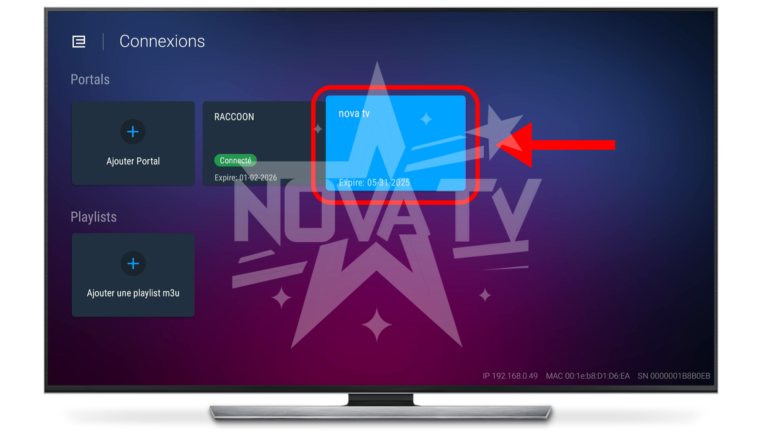
Then press the service you want to switch to.
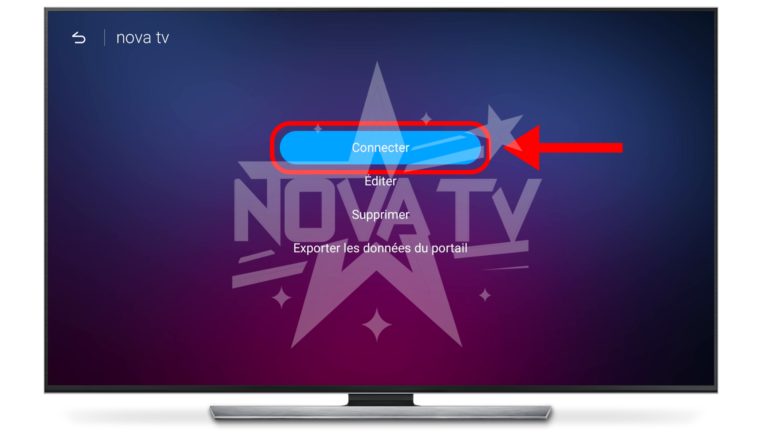
Press "Connect". The application will load the selected service.
Install MapleStream TV on Windows
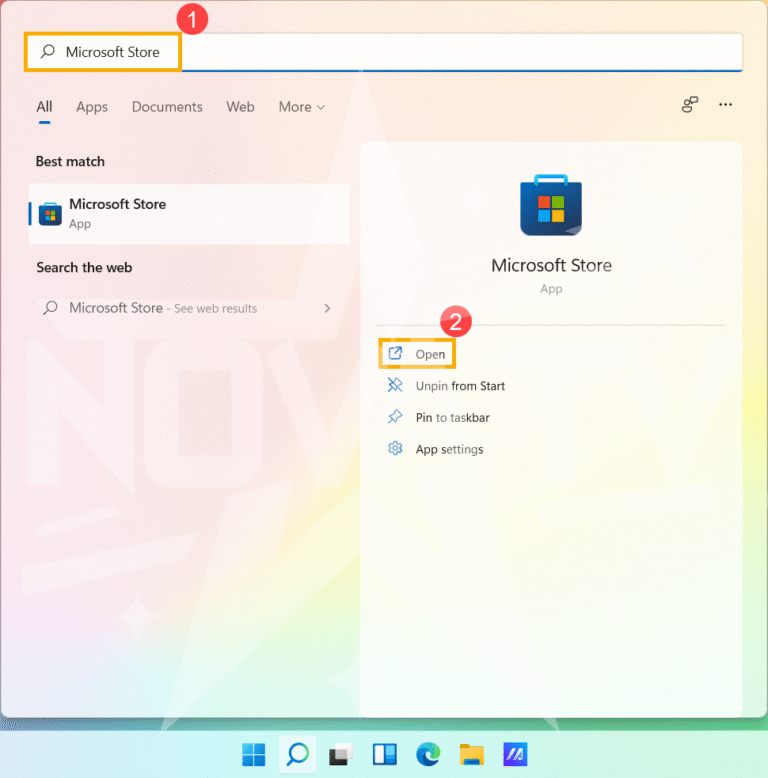
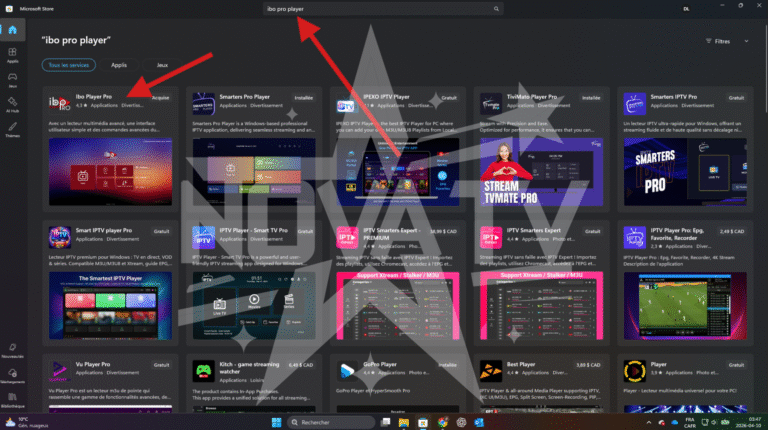
Open the Microsoft Store app on your Windows computer, either directly from the Apps menu or by using the search bar.
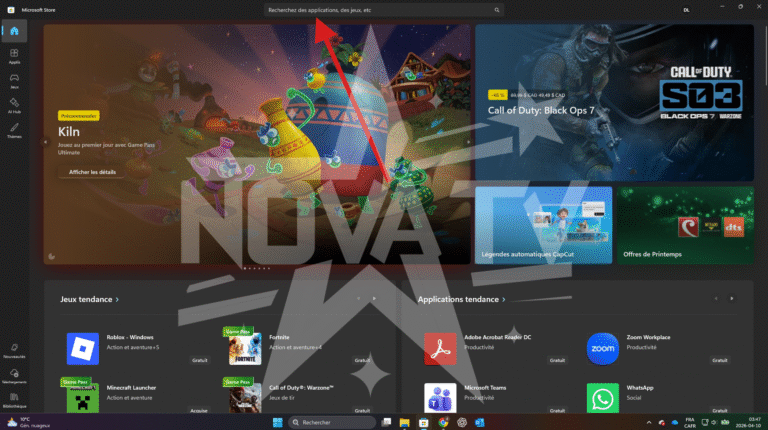
In the Microsoft Store search bar, type “IBO Player Pro”.
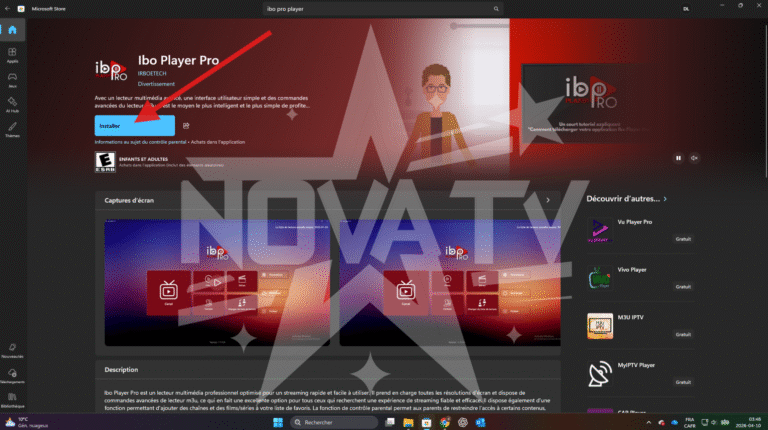
Click Install to download the app.
Once the installation is complete, open the app.
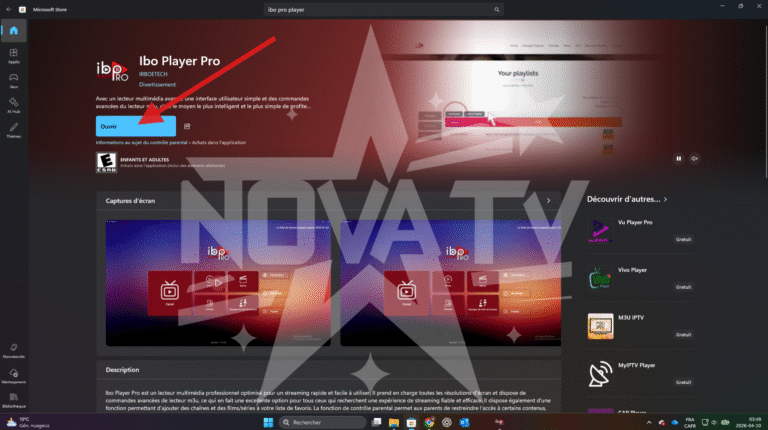
Open the app.
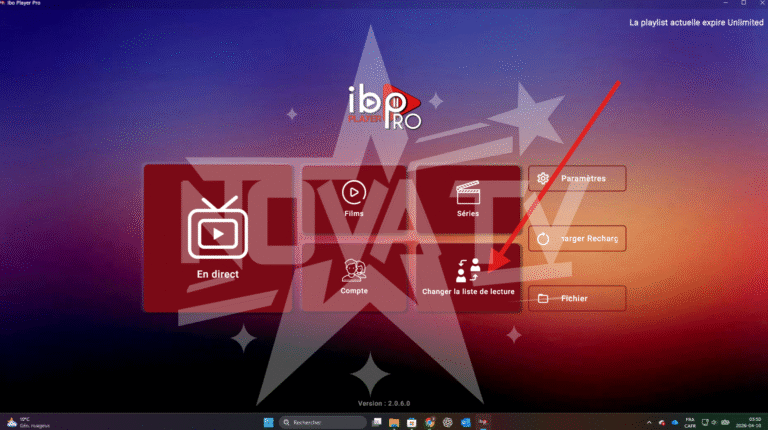
Go to the “Change Playlist” tab (or “Manage Playlist” if your app is in English).
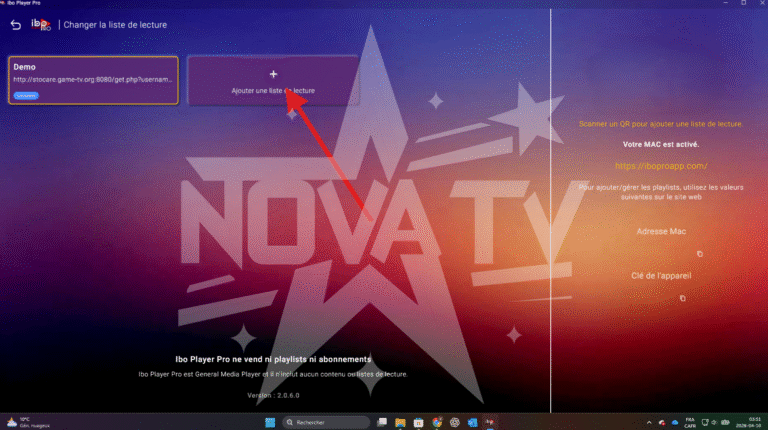
Select the “Xtream Codes” tab at the top of the screen.
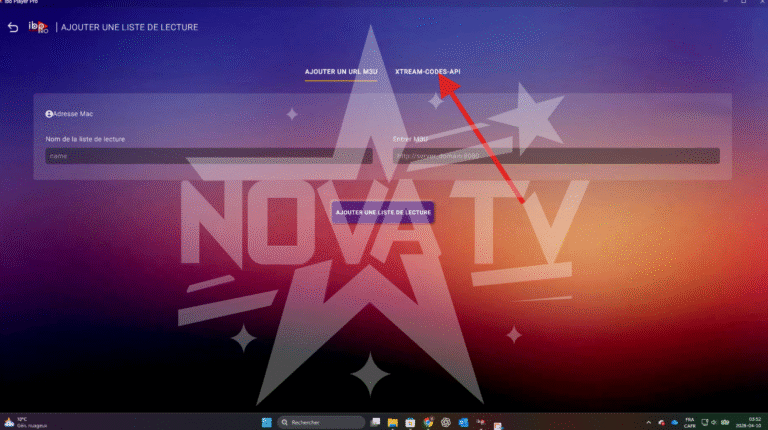
Enter the account information you received via email (subscription or 24-hour trial). Be sure to enter it exactly as shown.
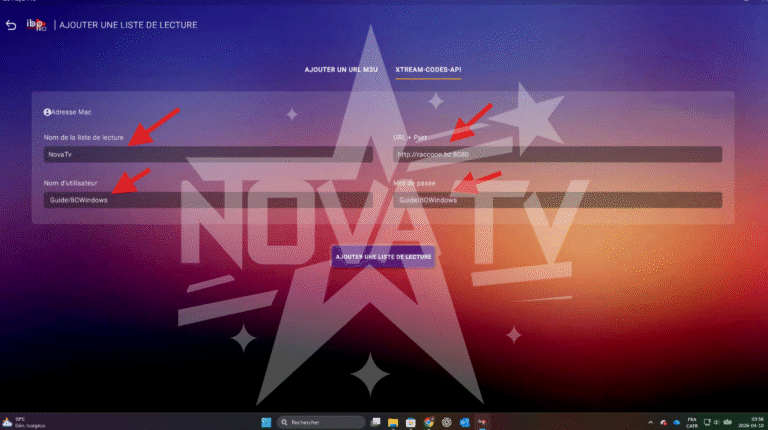
Once you have entered all the information, click “Add Playlist”.
⚠️ Carefully check for any errors, as the information is case-sensitive.
.
IF YOU ARE LOGGED IN TO THE WEBSITE, the information is below:
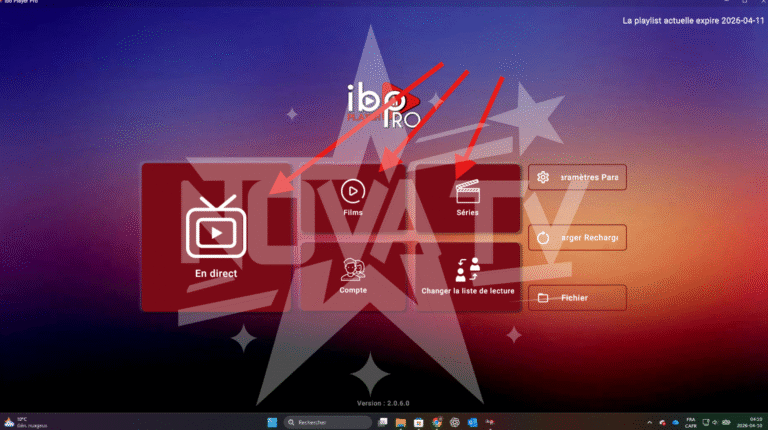
Once you've entered all the information, click "Add Playlist".
⚠️ Carefully check for any errors, as the text is case-sensitive.
Then return to the main menu. You will then be able to access:
📺 Live TV
🎬 Movies
📺 Series
…and enjoy the service to the fullest 😊